In recent years, many software programs and applications have continued to evolve by introducing advanced security measures to keep people’s data and information safe. Whether it be enabling a backup email or phone number for verification purposes that’s required for specific programs, using Face ID for some Apple products, like iPhones and iPads, to unlock these devices and the apps that come with them, or creating unique answers to security questions that must be answered correctly to access an account, these types of security methods have been put in place so that users can remain assured that their data is protected at all times.
Another standard security measure that has become prevalent across various platforms is two-factor authentication. Two-factor authentication allows users to keep their accounts and information safe by verifying that they’re the person attempting to log in via a unique code or receiving an automated call message that provides one. From there, users are then prompted to enter the unique code on-screen, which must match exactly what’s been given to them. Otherwise, they won’t be able to log in and access their account. Some systems even add an extra layer of protection by locking an account after a specific number of incorrect entries. This heightened measure also protects user data and information from unauthorized access, which can occur if accounts are hacked or duped.
Two-factor authentication is an integral part of many software systems and programs, such as for email, social media, banking, project management tools, and cloud-based software systems, and adjacent platforms that come with this feature. With two-factor authentication, businesses and consumers alike can have confidence that their data is being stored correctly and that they can use the systems and programs they need for business or personal use. Keep reading below to learn more about two-factor authentication, how you can enable it as part of the devices and systems you use, and about some of the most trusted authenticator programs that are out there today.
What Is Two Factor-Authentication?
Two-factor authentication is a system designed to protect users’ data, information, and accounts by granting access only after a user completes a set of steps correctly. Two-factor authentication prompts users who are actively trying to access their account to request a unique code from that program, which must then be entered correctly into the program’s designated field. With this system, users must follow the prompts to gain access to their account. Generally, two-factor authentication is an optional security feature that can be enabled for some programs and systems. However, some platforms may require it as part of their user agreement because their applications store sensitive data.
With it set up, when users log in to their account by entering their username and password, they’ll be prompted to select where they want their 2FA code sent, whether via email or phone number, which matches the information stored under their account. After choosing their preferred method, the program will send the code to the designated verification method, where the user must enter it on the authenticator screen of the program or system they’re using to access their account.
Authentication codes expire after a specific time period, such as 5 or 10 minutes after they are requested, for security purposes. If the code isn’t entered within that timeframe, then the user will have to request another code. In some cases, sending a code can be delayed, often due to a lag in system transmission or requesting a code too many times. Other times, if a user never receives a code after requesting one, they’ll have to re-request it.
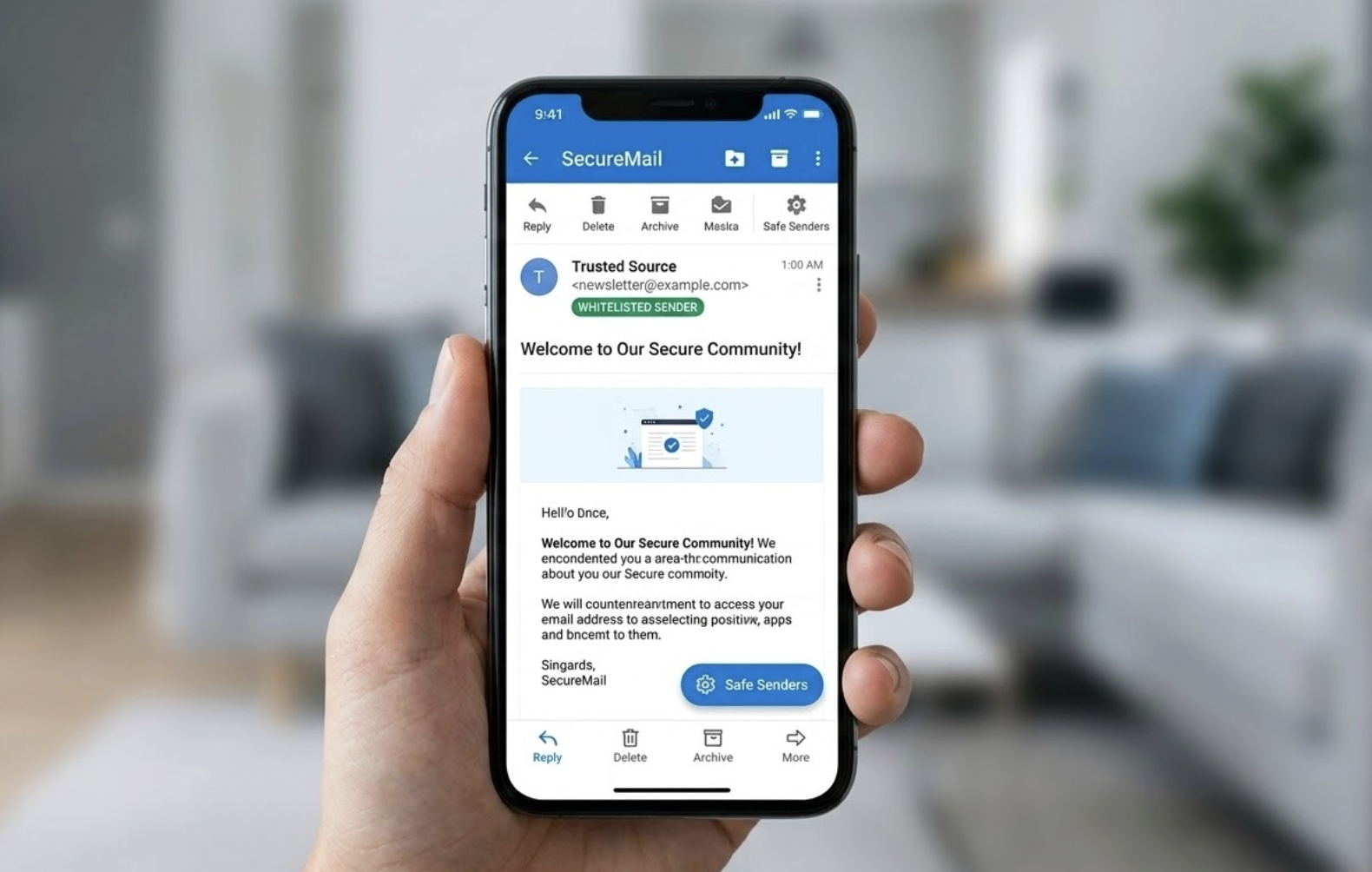
Other programs require users to use an authenticator app to complete the process. Instead of having the code sent to their phone or email, they’ll access it from an authenticator app already installed on their mobile device. They’ll then enter the code into the site program on their web screen to log in to their account. With these authenticator apps, codes also expire after a specific timeframe for security and data protection.
How to Set-Up Two-Factor Authentication
Two-factor authentication is relatively simple to get started with. When using a system or program application, you can enable it by going to your account’s settings and following the prompts. Usually, a system will allow you to switch this feature on for your account, select whether you want two-factor authentication codes sent to your email or phone number, or want to use an authenticator app. Some systems only work with certain authenticator apps, so you’ll need to choose one that’s compatible.
Before setting it up, you must also have a designated email or phone number saved to your account and viewable in settings, since they will be used for two-step verification. If you only have an email listed under your account and want to or are required to use two-factor authentication with your phone number, you’ll have to add it to your account first.
The same applies to phone-number usage accounts that may require an email for two-factor authentication or one that can be used for this method, depending on personal preference. After two-factor authentication is set up, you’ll then be able to use it for your account each time you go to log in. For authenticator apps and programs, you’ll need to download them to your mobile device and follow the prompts to set them up fully.
What Are the Different Types of Authenticator Apps and Programs?
There are many authenticator programs out there that systems and software applications use as part of their security verification process. Some are even used solely for a specific system that owns the authenticator program or mobile app, such as Microsoft and Google. When users log in to their Microsoft Outlook email accounts, they can opt to use the authenticator app to access their accounts. For users who are unable to access their Microsoft Authenticator app at certain times, the program also lets them choose to have the code sent to their phone number, which is then re-verified by entering it into the system. With Google, users can download, set up, and use its authenticator app to access their Gmail account or other compatible programs and services.
Other commonly used and trusted two-factor authentication apps include Duo Mobile, Okta Verify, and Authy. These programs follow a similar setup process, requiring users to download the apps to their mobile devices to start using them. Some authenticator apps, like Bitwarden and Keeper, also offer password management, allowing users to store account passwords in the app and use them for two-factor authentication. Depending on the program and software it requires, some authenticator apps aren’t compatible with specific smartphone devices unless a user updates their system requirements in order to download and access them.
Authenticator Quick Tips
When getting started with authenticator apps and programs, it’s important to keep some things in mind. If you’re using two-factor authentication for your email or phone number, make sure the email or phone number you want to use matches the one that’s listed on your account. If it isn’t there, then you’ll have to add it before using. You’ll also want to make sure you have access to the email and phone number you set up for two-factor authentication, since the unique codes will be sent to that designated email or phone number. If you’re using an authenticator app, make sure it’s compatible with your mobile device and can be downloaded. You’ll also want to double-check that they’re set up correctly according to the system prompts the app provides, and make sure your device is updated to the latest iOS or Android version the app requires.


 Table of content
 Share
Share